Taking high-quality photos no longer requires an expensive camera or a powerful desktop computer. Modern Android smartphones can capture impressive images, while mobile editing apps make it possible to improve those photos within minutes.
Whether you are a professional photographer, social media creator, blogger, small business owner, or someone who simply enjoys taking pictures, the right photo editing app for Android can make a noticeable difference. You can adjust lighting, correct colors, remove distractions, improve portraits, create collages, add creative effects, and prepare images for different social platforms directly from your phone.
The challenge is choosing the right application. There are hundreds of photo editors available for Android, and each one focuses on different types of editing. Some are designed for quick corrections, while others offer advanced controls for photographers. Some focus on filters and presets, whereas others combine photo editing with graphic design and creative tools.
In this guide, we will look at seven of the best photo editing apps for Android and explain what each app does best. We will also compare their strengths, discuss who should use them, share practical mobile editing tips, and answer common questions about Android photo editing.
Why Use a Photo Editing App on Android?
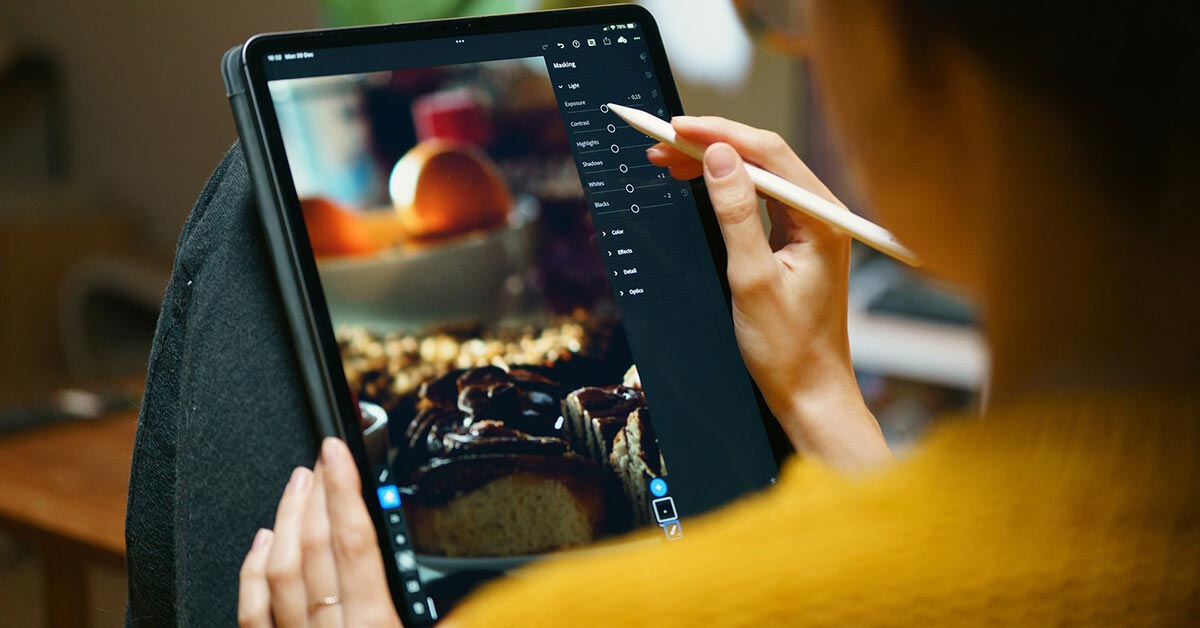
Even when a photograph is captured with a good smartphone camera, it may not look exactly the way you imagined. Lighting can be uneven, colors may appear slightly dull, or unwanted objects can distract attention from the main subject.
A mobile photo editor gives you an opportunity to correct these issues without moving your image to another device.
Depending on the application, you can use an Android photo editor to:
- Adjust brightness and exposure
- Improve contrast and shadows
- Correct white balance
- Enhance or reduce colors
- Crop and resize images
- Remove small distractions
- Improve portraits
- Apply filters and presets
- Add text and graphic elements
- Create photo collages
- Prepare images for social media
- Make quick edits while traveling
The biggest benefit is convenience. You can capture a photo, edit it, and publish it from the same smartphone.
For everyday photography, this can save considerable time.
7 Best Photo Editing Apps for Android
Different users need different editing tools. A professional photographer may prioritize RAW support and detailed color controls, while a casual user may only need cropping, filters, and brightness adjustments.
The following apps cover a wide range of mobile editing needs.
1. Snapseed
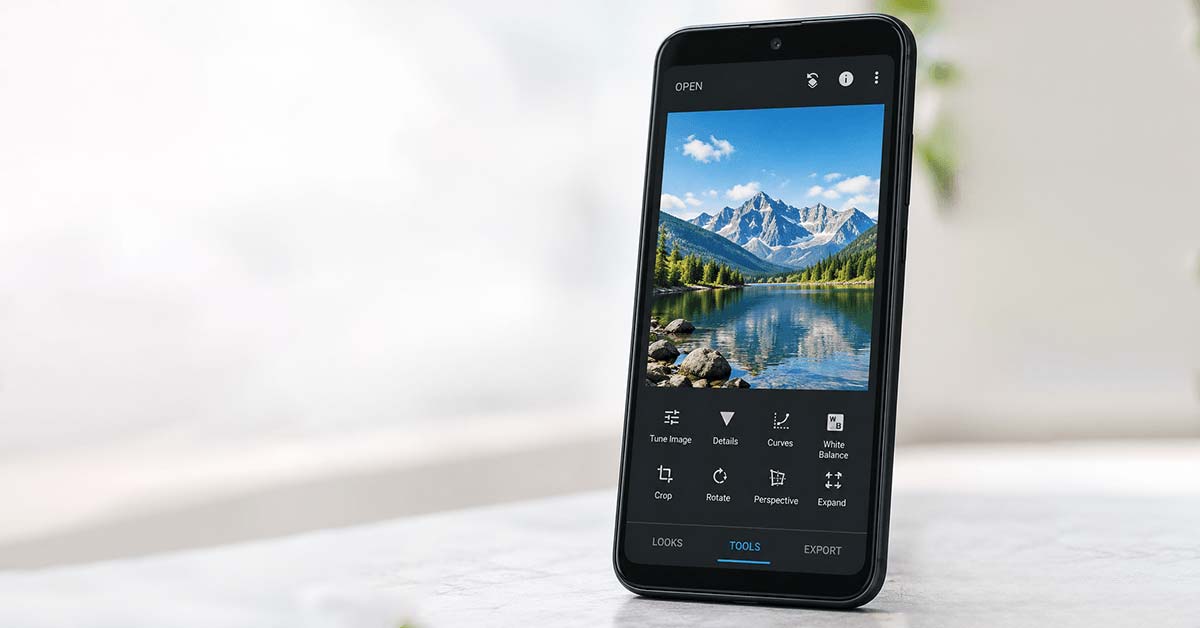
Snapseed is one of the most well-known mobile photo editors and remains a strong choice for Android users who want detailed editing without an unnecessarily complicated workflow.
The application combines basic editing features with more advanced controls, allowing beginners to start with simple adjustments while experienced users can explore deeper editing options.
One of Snapseed’s biggest advantages is its broad collection of tools. Instead of relying entirely on filters, users can make specific adjustments to an image and control how different parts of a photograph look.
Key Features of Snapseed
- Multiple editing tools and filters
- Support for JPEG and compatible RAW files
- Healing tool
- Selective adjustments
- Perspective correction
- HDR effects
- Curves and tonal controls
- Crop and rotate options
- Sharpening and detail adjustments
- Ability to save and reuse editing styles
The Healing tool is useful for removing small unwanted elements from a photograph. Selective editing can also help when you want to brighten, darken, or enhance a particular area rather than changing the entire image.
Who Should Use Snapseed?
Snapseed is suitable for beginners who want to learn photo editing as well as photographers who want more control over their images.
Best for: Everyday photography, detailed adjustments, RAW editing, and learning advanced mobile editing techniques.
2. Adobe Photoshop Express
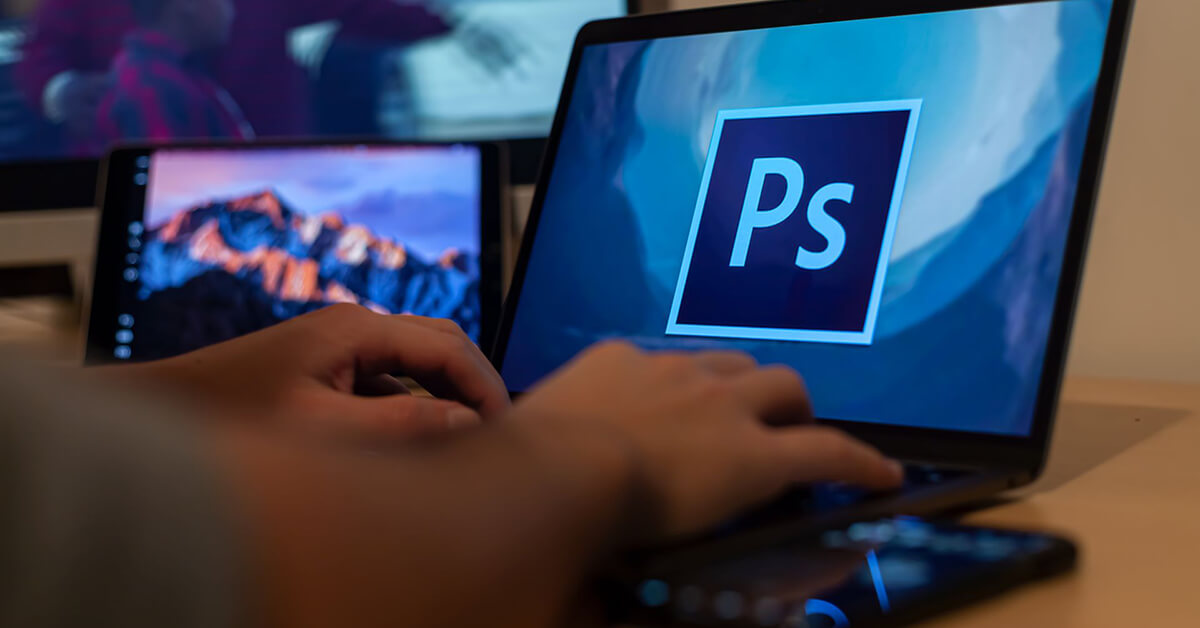
Adobe Photoshop Express brings a selection of convenient Photoshop-style editing capabilities to mobile devices. It is designed around quick image enhancement, making it useful for people who want to improve photographs without spending a long time working through complicated menus.
The application can be useful for social media images, portraits, travel photographs, and everyday snapshots.
Rather than requiring users to understand professional desktop software, Photoshop Express focuses on accessible mobile editing tools.
Key Features of Photoshop Express
- Quick photo enhancement
- Cropping and resizing
- Perspective correction
- Red-eye correction
- Blemish and spot removal
- Blur effects
- Noise reduction
- Filters and creative effects
- Collage creation
- Text and design features
Perspective correction can be particularly helpful for photographs of buildings, documents, or other subjects where straight lines are important.
The retouching features can also help improve portraits by removing minor imperfections and distractions.
Who Should Use Photoshop Express?
Photoshop Express is a good choice for users who want quick editing tools and are already familiar with Adobe’s creative ecosystem.
Best for: Quick corrections, portraits, social media photos, and convenient mobile editing.
3. Pixlr
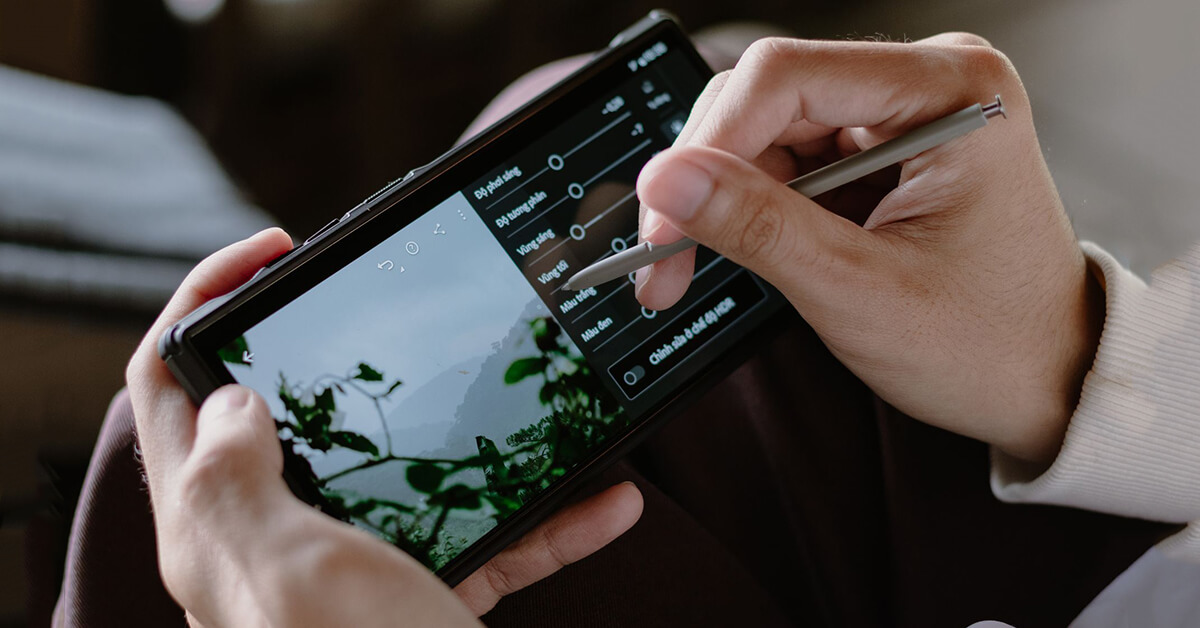
Pixlr is designed to make creative photo editing accessible to a broad range of users. It combines basic image adjustments with filters, effects, collage features, and design-oriented tools.
The application can be useful when you want to do more than simply correct exposure or color. For example, you can turn several photographs into a collage or add visual elements to create content for social media.
Its relatively approachable workflow makes it suitable for beginners and casual creators.
Key Features of Pixlr
- Basic photo adjustments
- Creative filters and effects
- Crop and resize tools
- Collage creation
- Overlays and decorative elements
- Color adjustments
- Text features
- Social media-oriented editing
- Quick image enhancement
Small businesses can also use tools like Pixlr for simple promotional graphics and social media content.
For example, a business owner could combine a product photograph with text and other visual elements to create a simple promotional post.
Who Should Use Pixlr?
Pixlr is best suited to users who want simple photo editing combined with creative design options.
Best for: Beginners, social media users, bloggers, and small businesses.
4. Picsart
Picsart takes a more creative approach to mobile photo editing. Instead of concentrating only on traditional photographic corrections, it combines image editing, graphic design, creative effects, and social content creation.
This makes it particularly useful for users who want to transform ordinary photographs into more visually expressive content.
You can combine images with text, stickers, effects, backgrounds, and other design elements. Depending on the available version and plan, the platform also provides AI-assisted creative features.
Key Features of Picsart
- Background removal and replacement
- Object removal
- Creative effects
- Text and typography tools
- Stickers and decorative elements
- Collage creation
- Portrait editing
- Background blur
- Cropping and rotation
- AI-assisted creative tools
One of the application’s strengths is its versatility. A single photograph can be transformed into a social media post, creative portrait, promotional graphic, or other digital artwork.
Some features may be limited to paid plans, so it is worth checking the current offering before subscribing.
Who Should Use Picsart?
Picsart is particularly useful for people who want creative editing tools rather than simple photographic corrections.
Best for: Social media creators, influencers, graphic-design enthusiasts, and creative photo editing.
5. VSCO
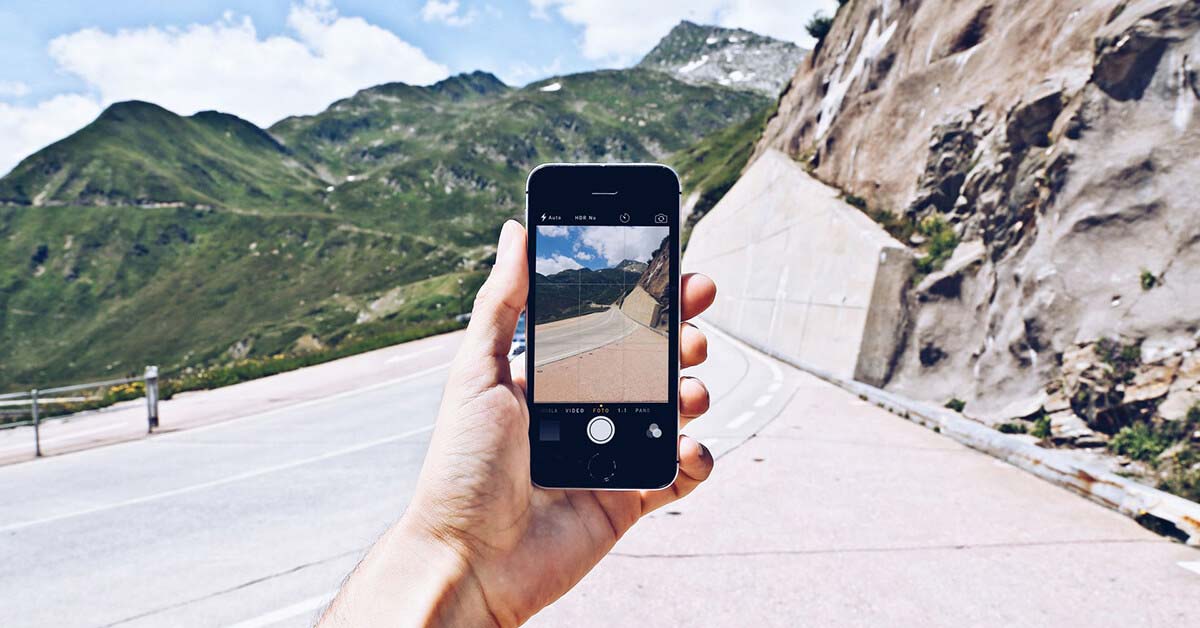
VSCO is well known for its photography-focused aesthetic and preset-based editing workflow.
Rather than encouraging users to make dozens of complicated adjustments, VSCO places considerable emphasis on creating a consistent visual style. This makes it popular among photographers and content creators who want their images to have a recognizable appearance.
Presets can also save time when editing multiple photographs with a similar mood.
Key Features of VSCO
- Photography presets
- Filters and effects
- Exposure adjustments
- Contrast controls
- HSL tools
- Split-toning options
- Reusable editing recipes
- Photo and video editing
- Creative community features
One of the useful aspects of a preset-based workflow is consistency. If you regularly publish photographs on social media, applying a similar editing style can help create a more cohesive feed.
However, presets should generally be treated as a starting point rather than a replacement for careful editing.
Who Should Use VSCO?
VSCO is a good choice for photographers and creators who care about mood, style, and consistency.
Best for: Lifestyle photography, social media feeds, presets, and aesthetic photo editing.
6. BeFunky
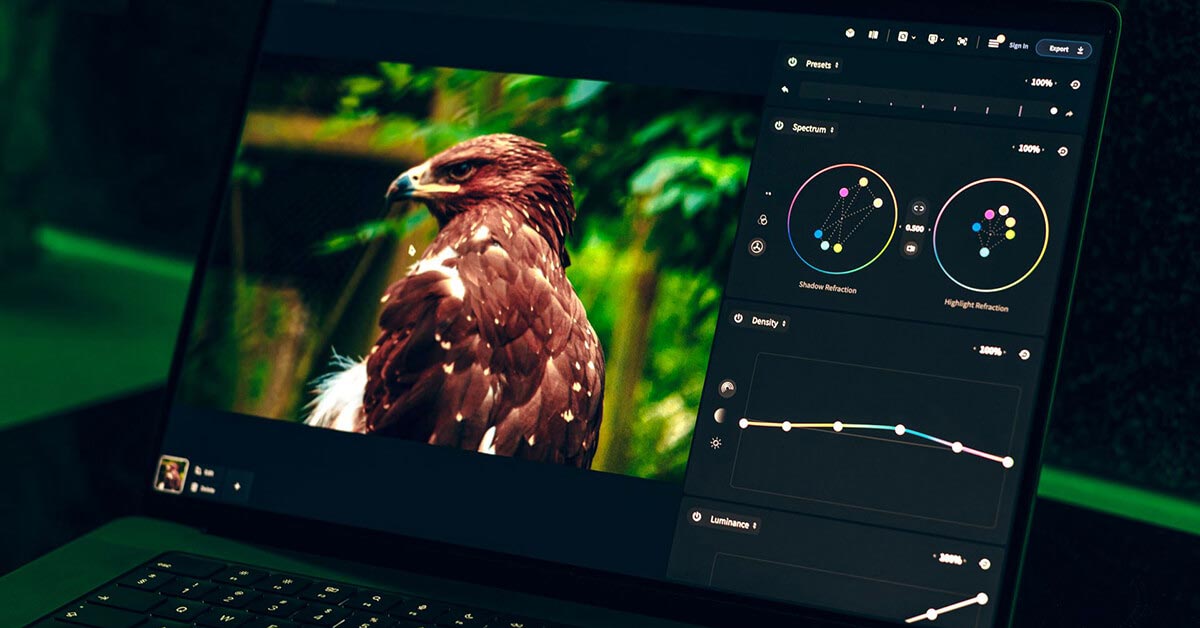
BeFunky is an approachable photo editing platform aimed at users who want simple editing and creative design features without a complicated professional workflow.
It can be useful for everyday image corrections as well as creating collages and simple graphics.
The interface focuses on practical editing tasks, making it a reasonable choice for users who are new to photo editing.
Key Features of BeFunky
- Crop and rotate tools
- Image resizing
- Text addition
- Photo effects
- Collage creation
- Basic image enhancement
- Creative design features
- Simple editing workflow
Its collage functionality can be useful for travel photographs, family pictures, product showcases, and social media posts.
Who Should Use BeFunky?
BeFunky is most appropriate for beginners and casual users who prefer simplicity over a highly technical editing environment.
Best for: Basic photo editing, collages, simple graphics, and casual users.
7. Adobe Lightroom Mobile
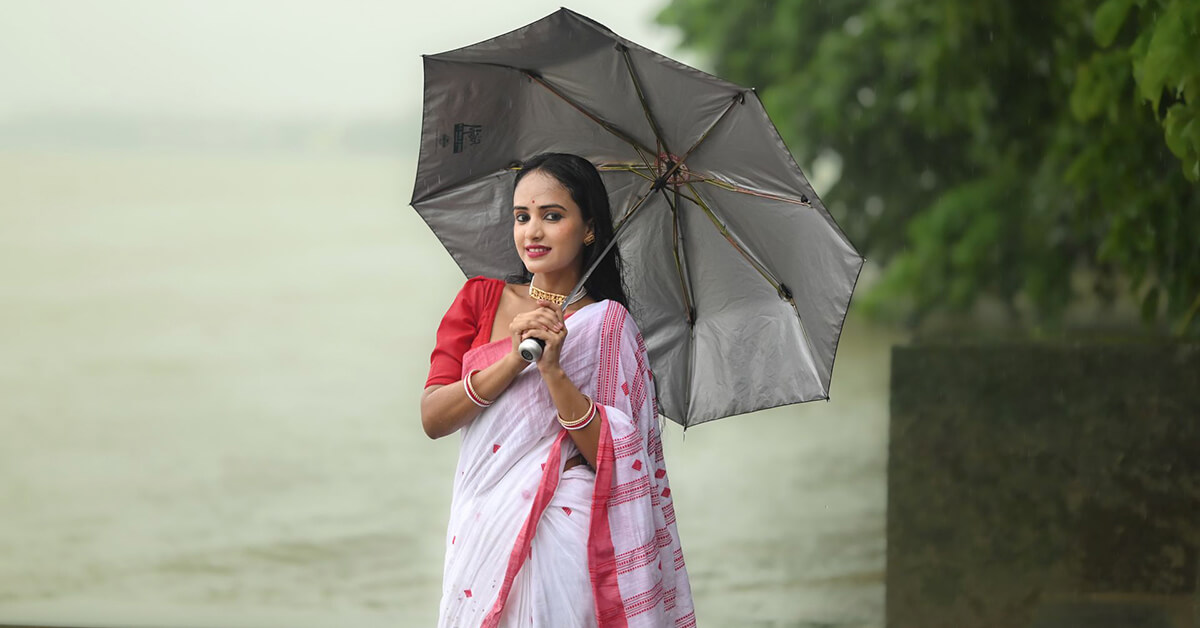
Lightroom Mobile is one of the strongest options for photographers who want advanced control over image appearance from an Android device.
Unlike applications that focus mainly on filters and quick effects, Lightroom is built around photographic adjustments such as exposure, white balance, color, highlights, shadows, and detail.
It can also be useful for photographers who want a more consistent editing workflow across a large collection of images.
Key Features of Lightroom Mobile
- Exposure adjustment
- White balance controls
- Highlights and shadows
- Color mixing
- Curves
- Presets
- Sharpening and detail controls
- Lens-related corrections
- RAW editing on supported devices
- Selective adjustments
- Photo organization features
Lightroom may require more time to learn than a simple filter-based application. However, its extensive controls can provide much greater flexibility.
For photographers who want to learn professional-style color correction and image enhancement, Lightroom Mobile can be an excellent place to develop those skills.
Who Should Use Lightroom Mobile?
Lightroom is particularly suitable for photographers and advanced creators who want detailed control over image quality.
Best for: Professional photography, RAW editing, color correction, presets, and advanced mobile workflows.
Best Photo Editing Apps for Android: Comparison
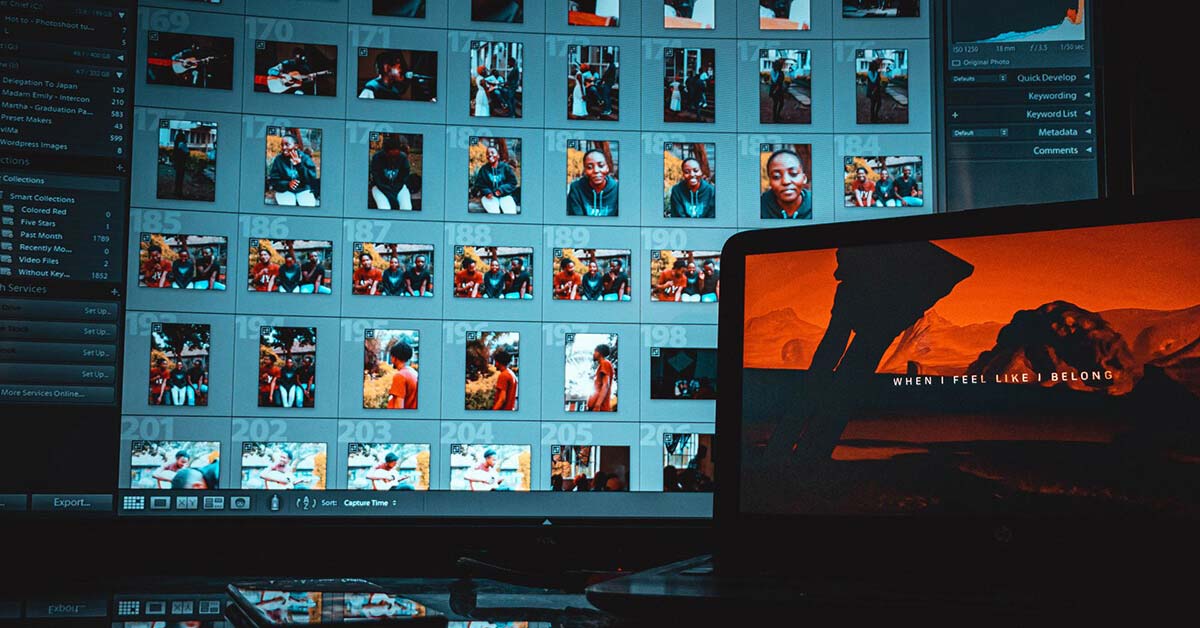
Choosing between seven different applications can be difficult, so the following comparison provides a quick overview.
| App | Best For | Skill Level | Main Advantage |
| Snapseed | General photography | Beginner–Intermediate | Detailed editing tools |
| Photoshop Express | Quick corrections | Beginner | Fast and convenient editing |
| Pixlr | Creative editing | Beginner | Filters and design features |
| Picsart | Social media content | Beginner–Intermediate | Creative and AI-assisted tools |
| VSCO | Stylish photography | Beginner–Intermediate | Presets and visual consistency |
| BeFunky | Casual editing | Beginner | Simple workflow and collages |
| Lightroom Mobile | Advanced photography | Intermediate–Advanced | Color and RAW workflow |
Which Android Photo Editor Is Best for You?
The best app depends on how you plan to use it.
Best for Beginners: Snapseed
If you are new to photo editing, Snapseed is a strong starting point. It is simple enough to understand while still offering advanced tools that allow you to improve your skills over time.
Best for Professional Photographers: Lightroom Mobile
Photographers who need detailed exposure, color, RAW, and tonal controls may prefer Lightroom Mobile.
Best for Social Media: Picsart
If your main goal is creating attention-grabbing social media content, Picsart offers a broad selection of creative features.
Best for Presets: VSCO
For users who want a consistent visual identity, VSCO’s preset-focused workflow is worth exploring.
Best for Quick Editing: Photoshop Express
If you need to quickly crop, enhance, retouch, or prepare an image for sharing, Photoshop Express can be a convenient option.
Best for Simple Creative Work: Pixlr or BeFunky
For casual editing, collages, and basic graphics, Pixlr and BeFunky provide relatively straightforward workflows.
How to Choose the Best Photo Editing App for Android
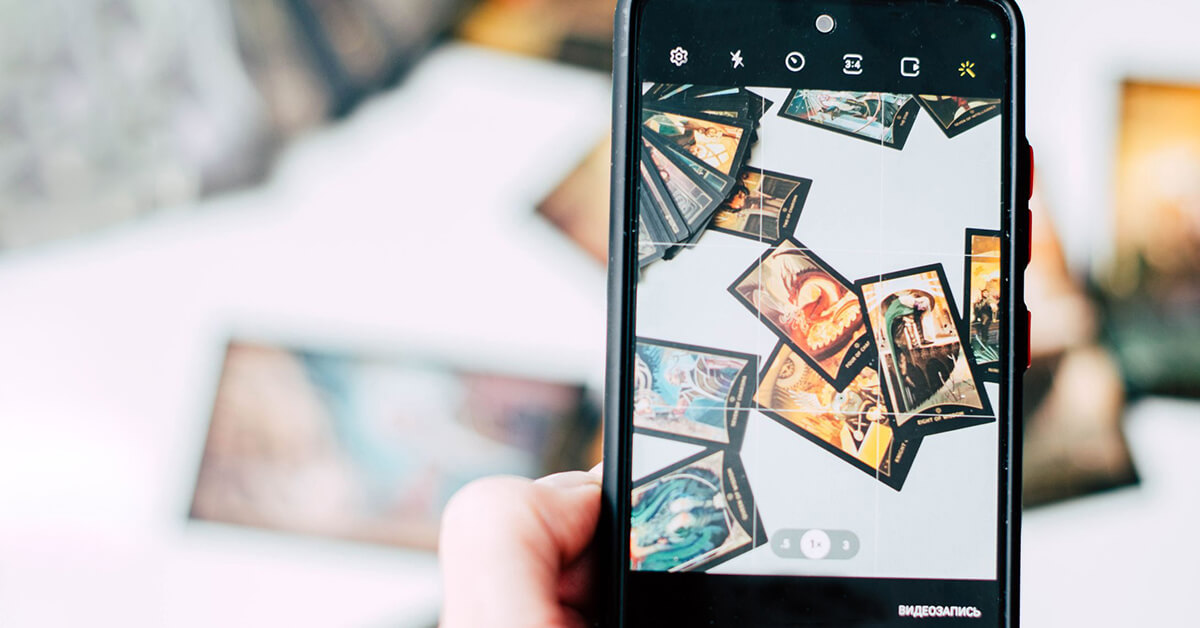
Before installing an editor, think about the type of work you regularly perform.
1. Consider Your Skill Level
A beginner may not need hundreds of advanced controls. In fact, too many features can make the editing process confusing.
Start with an app that is easy to understand and provides room for learning.
2. Look at Your Photography Style
Different types of photography require different tools.
Portrait photographers may need retouching and skin-enhancement features. Landscape photographers may prioritize color and tonal adjustments. Product photographers may need precise masking and background editing.
Choosing an app based on your photography style can save time.
3. Check RAW Support
If your camera or smartphone captures RAW images, check whether your chosen application supports the specific RAW format and device.
RAW files can retain more image information than compressed JPEG files, giving photographers greater flexibility when adjusting exposure and color.
4. Check Export Options
Image quality matters after editing.
An application may produce a beautiful preview but compress the final image too heavily during export. Before using an app for professional work, check its available export settings and resolution options.
5. Think About Presets
Presets are useful when you regularly edit similar photographs.
They can provide a starting point and help maintain consistency across a collection of images.
6. Consider Background Removal
Background removal can be useful for product images, portraits, advertisements, and social media graphics.
For simple subjects, automated tools may work well. More complex commercial photographs may still require manual masking or professional editing.
Practical Tips for Better Mobile Photo Editing
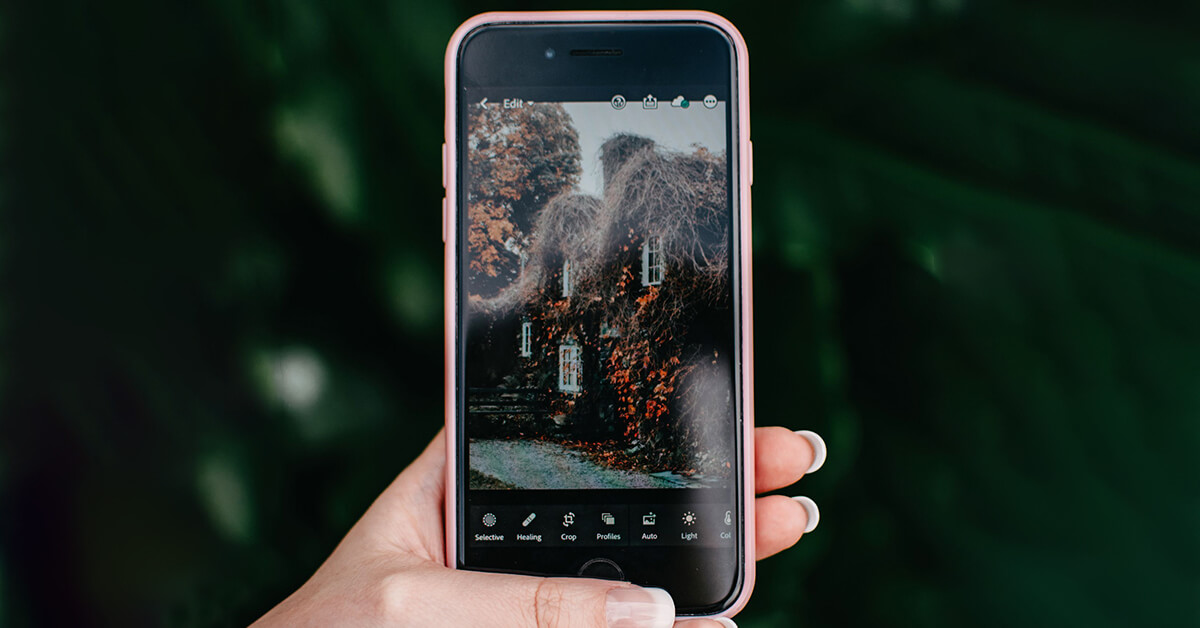
Installing the best Android photo editor is only the beginning. Good editing also depends on how you use the available tools.
Start With Exposure
Before applying creative effects, make sure the photograph has reasonable brightness. Correcting exposure first gives you a better foundation for further adjustments.
Correct White Balance
If a photograph looks unusually blue, yellow, or orange, the white balance may need adjustment.
Natural-looking colors are generally more important than simply making an image more colorful.
Use Contrast Carefully
A small increase in contrast can add depth and definition. Too much contrast, however, can destroy shadow and highlight detail.
Don’t Over-Saturate
Increasing saturation can make colors appear more vibrant, but excessive saturation can make an image look artificial.
Try to preserve believable skin tones and natural colors.
Use Filters as a Starting Point
Filters can quickly create a mood, but applying them at full strength is not always the best approach.
After applying a filter, reduce its intensity and make additional adjustments when necessary.
Crop With Purpose
Cropping can improve composition and remove distracting elements.
Instead of cropping randomly, consider what you want viewers to notice first.
Keep the Original Photograph
Always preserve your original image before making significant changes. Keeping an untouched copy allows you to experiment without worrying about permanently losing the original.
Are Android Photo Editing Apps Good Enough for Professional Work?
For many types of photography, mobile apps are more than capable of handling everyday editing.
Social media photographs, personal images, travel photography, basic portraits, blog images, and many content-creation projects can often be completed entirely on a smartphone.
However, mobile editing applications are not always the best solution for complex commercial work.
Professional product photography, for example, may require precise clipping paths, advanced masking, background replacement, detailed retouching, color matching, or complex compositing.
These tasks can require a larger workspace and more specialized tools than a mobile application can comfortably provide.
In such cases, desktop software or professional image editing services may be more appropriate.
The ideal workflow depends on the project. Mobile apps are excellent for speed and convenience, while professional desktop workflows are often better for highly detailed commercial editing.
Frequently Asked Questions About Photo Editing Apps for Android
What is the best photo editing app for Android?
There is no single best application for every user. Snapseed is a strong all-around choice, Lightroom is better suited to advanced photography, and Picsart is useful for creative and social media content.
Which Android photo editor is best for beginners?
Snapseed, Pixlr, BeFunky, and Photoshop Express are approachable choices for beginners. Your best option depends on whether you want basic corrections, creative effects, or more advanced controls.
Can I edit RAW photos on Android?
Yes. Some Android editing applications support RAW photographs, although compatibility depends on the device, camera, operating system, and file format. Lightroom Mobile and Snapseed are commonly used for RAW workflows.
Is Snapseed good for professional photography?
Snapseed can be useful for professional photographers, particularly when they need quick but detailed adjustments on a mobile device. However, highly complex commercial projects may still benefit from desktop software.
Which photo editing app is best for Instagram?
VSCO, Picsart, Snapseed, and Pixlr can all be useful for Instagram content. VSCO is particularly suited to preset-based aesthetics, while Picsart offers more creative design options.
Can I remove a background using an Android photo editor?
Yes, several modern photo editing applications offer background removal or replacement. Results depend on the complexity of the subject, edges, lighting, and background.
Do I need a computer to edit photos professionally?
Not necessarily. Many professional-looking adjustments can be performed on a smartphone. However, advanced retouching, complex masking, batch processing, and detailed commercial work can be easier on a computer.
Are free photo editing apps worth using?
Yes. Free applications can handle many common editing tasks, including cropping, exposure correction, color adjustments, filters, and basic retouching. Paid versions may provide additional features or advanced tools.
Which app is best for color correction?
Lightroom Mobile is a strong choice for detailed color correction because it provides controls for exposure, white balance, color mixing, curves, highlights, and shadows. Snapseed is another good option for users who prefer a simpler interface.
How can I make smartphone photos look professional?
Start with a good original photograph, then make subtle adjustments to exposure, white balance, contrast, color, and sharpness. Avoid excessive filters and saturation. Good composition and lighting are just as important as editing.
Conclusion: Choosing the Right Android Photo Editor
The best photo editing app for Android is not necessarily the application with the largest number of features. The right choice is the one that matches your photography style, technical ability, and editing requirements.
For a versatile and accessible editor, Snapseed is an excellent option. Photoshop Express is useful for quick corrections and convenient mobile editing, while Pixlr and BeFunky are suitable for simple creative work and collages.
If you enjoy creating social media graphics and more experimental visual content, Picsart provides a broad range of creative tools. VSCO is a strong choice for users who value presets and a consistent photographic style. For advanced photographers who need detailed color adjustments and RAW editing capabilities, Lightroom Mobile is one of the strongest options available.
You don’t need to install every application. Start with one editor that fits your needs, learn its most important tools, and gradually develop your own editing workflow.
Most importantly, remember that good editing should enhance a photograph rather than completely hide its natural qualities. Small improvements to exposure, color, composition, and detail can often produce a more professional result than excessive effects.
Whether you’re editing family photographs, creating social media content, preparing blog images, or working on professional photography projects, a capable Android photo editor can give you the flexibility to improve your images almost anywhere.
Choose the application that fits your workflow, experiment with different techniques, and focus on creating photographs that look polished, natural, and visually engaging.